
Questions and answers
- How do I allow access to the camera and microphone?
- How can I stay anonymous in the chat?
- How can I spot a scammer in the chat?
- What does "Start a conversation to make calls and send files" mean?
- How do I add a user to the black list?
- How do I add a user to favorites?
- What does "Account approved" mean?
- How do I report a user?
- How do I delete conversations?
- Why can an account be blocked?
- What does "The user may record the video call" mean?
- Why was the account gender changed?
- How do I delete a photo or video sent in a message?
- Can a deleted account be restored?
- Why did a contact or conversation disappear?
- How to install the Benechat app (PWA) on your phone or computer
- Can chat administrators contact me through private messages?
- What do the green and grey status dots on users’ profiles mean?
- A feature is missing, what should I do?
How do I allow access to the camera and microphone?
To use video calls, you need to allow your browser to access your camera and microphone. The steps may differ depending on your browser and operating system:
Google Chrome, Android: see the instructions⎘.
Google Chrome, PC: see the instructions⎘.
Google Chrome, iOS: see the instructions⎘.
Safari, iOS
Safari usually asks for permission to use the camera and microphone. You can choose one of the options: "Allow" or "Cancel".

Once you make your choice, the permission setting stays in effect until you leave the site or reload the page. If you want to change your choice, simply reload the page and select the option you need again.
You can also allow access without reloading the page. To do this, tap the "AA" icon in the address bar, open the website settings, and enable access to the camera and microphone:

In some cases, you may also need to allow Safari to access the camera and microphone in your iPhone settings: Settings -> Safari -> Camera, Settings -> Safari -> Microphone.
Google Chrome, Opera and Mozilla Firefox
Click the lock icon in the address bar and allow access to the camera and microphone:

How can I stay anonymous in the chat?
To protect your anonymity, we strongly recommend following these tips:
- Keep all your personal contact details strictly private: your phone number, email address, social media profiles, the city you live in, and even your real name.
- Do not show your face and do not send photos showing your face in private messages to people you do not trust.
- Do not open suspicious links.
- Do not continue the conversation on WhatsApp or Viber. On Telegram, make sure you have a username set so that your phone number is not visible.
- Use the strictest privacy settings on social networks such as Facebook, Vkontakte and Odnoklassniki.
How can I spot a scammer in the chat?
To protect yourself from scammers, follow these rules:
- Do not use paid services offered by users whose account does not have the "Account approved" badge.
- Avoid users who immediately ask to continue the conversation via a messenger or email.
- During a video chat, ask the user to make a specific gesture or to speak into the microphone. Only if the user responds to your request can you be more confident that it is not a pre-recorded video.
What does "Start a conversation to make calls and send files" mean?
Each user can restrict calls and file sending, making them available only to users with whom a conversation has already been established. Please note that for a conversation to be considered active, you must receive at least two reply messages. Otherwise, you will see the following warning: "Start a conversation with the user before sending files".
How do I add a user to the black list?
Only registered users can add other users to the black list. To add a user to the black list, click the following button:

Users on your black list cannot call you or send you messages. Call restrictions do not apply to Chatroulette.
You can view and manage your black list in the settings panel.
How do I add a user to favorites?
You must be registered to add users to favorites. To add a user to your favorites list, click the following button:

By adding users to favorites, you can also configure your account to accept calls only from users on this list.
You can view and manage your favorites list in the settings panel.
What does "Account approved" mean?
This badge confirms that the user is at least 18 years old and that their gender matches the information displayed in their profile. To request verification, please contact our online support team.
How do I report a user?
You must be registered to report a user. To send a report, click the following button and select the appropriate type of complaint:

Users who violate the chat rules may face various restrictions, including having their account blocked.
How do I delete conversations?
To delete a conversation on a computer, hover over the conversation in the list and click the following button:

To delete a conversation on a mobile device, swipe the conversation to the left and tap "Delete":

The conversation is deleted only on your side. However, it may reappear if new messages arrive. A conversation can be permanently deleted only when the following conditions are met:
- Each participant deletes the conversation.
- No new messages arrive between the moment one participant deletes the conversation and the moment the other participant does the same.
On mobile, you can select multiple conversations and delete them all at once.
Why can an account be blocked?
We strongly recommend using the chat in accordance with the terms of the user agreement. Our moderation team constantly monitors compliance with the platform rules. Users who violate these rules may face restrictions, and serious violations may result in a permanent ban from the chat. The most common reasons for account blocking are:
- Spam, advertising messages, or mass distribution of contact details.
- Uploading prohibited files.
- Creating fake accounts. In cases where fake accounts are created en masse, the real user's account may also be blocked!
- Misleading users about your gender.
- Using fake webcams or pre-recorded videos in the video chat.
- Access is limited to users aged 18 and over. Any content or discussions involving minors are prohibited.
- Offering paid services without prior permission from the chat administration.
- Creating multiple accounts for a single user.
- Extortion or distribution of other chat users' personal data, photos, or videos.
What does "The user may record the video call" mean?
In most cases, this message is a reminder that you need to protect your anonymity: do not show your face and do not share contact details. However, in some cases, the likelihood that the user will record the video call may be higher. The criteria by which this message is shown are not disclosed.
Why was the account gender changed?
The profile gender may be changed based on complaints received from other chat users. If you believe the gender in your profile was changed by mistake, contact the online support service to confirm your gender via a short video call with a moderator.
How do I delete a photo or video sent in a message?
On desktop: To delete a photo or video, click the trash icon to the left of the file in the conversation.
On mobile: Press and hold the message containing the photo or video, then select "Delete".
When you delete files from your gallery, they are automatically removed from all conversations, both on your side and on your chat partner's side.
Can a deleted account be restored?
No. A deleted account and all data associated with it are permanently deleted.
Why did a contact or conversation disappear?
The user deleted their account or was blocked for violating the platform rules. A user’s account may also disappear if they deactivate it. It will reappear once they reactivate their account.
How to install the Benechat app (PWA) on your phone or computer
For faster access, full-screen chat and instant notifications, install the Benechat app on your phone or computer. No need to download it from the App Store or Google Play - just open https://benechat.com/app/ and add it to your home screen in a few seconds.
How to install the Benechat app on iPhone and iPad via Safari
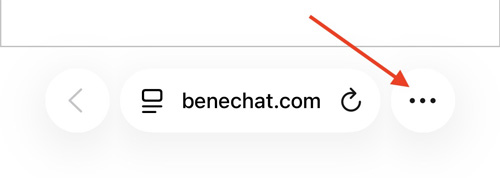
Open benechat.com/app/ in Safari on your iPhone or iPad. Tap the Menu (⋮) or (⋯) button.
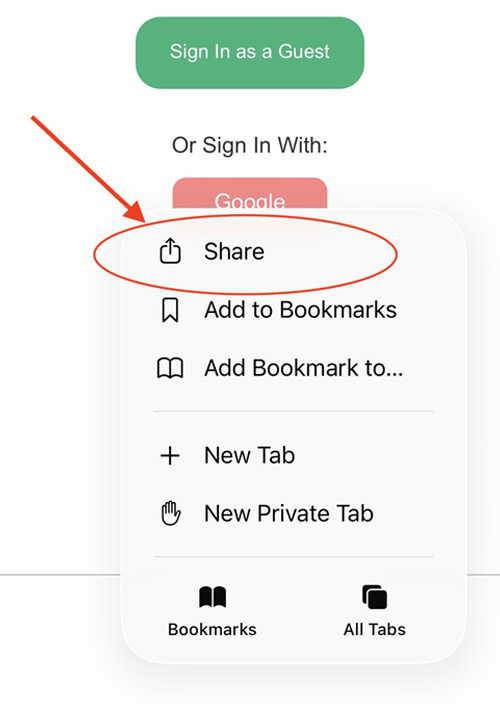
Tap the Share button at the bottom of the screen.
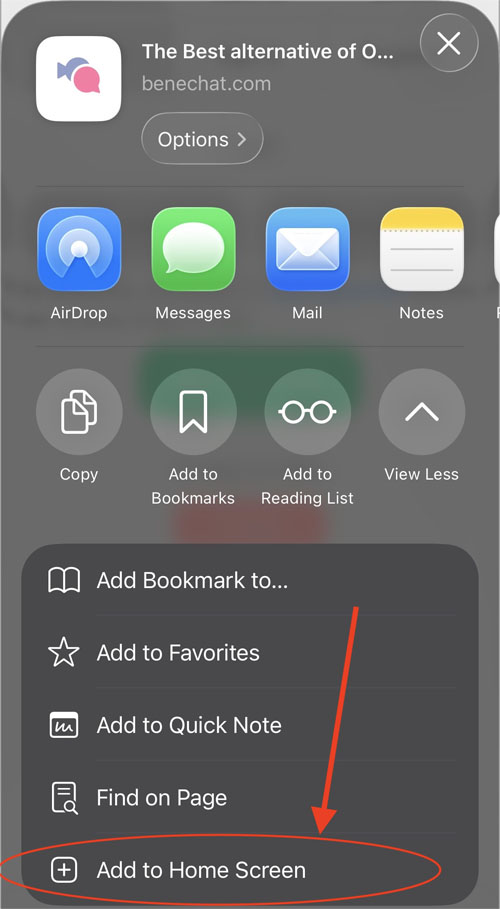
Scroll down and select Add to Home Screen.
Tap Add - the Benechat app will appear on your home screen like a regular app.
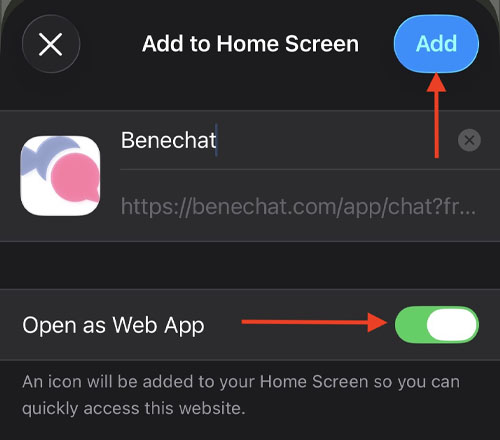
Note: When you open the app for the first time, you may need to sign in to your account again.
How to install Benechat on Android via Google Chrome
Open benechat.com/app/ in Chrome on your Android phone.
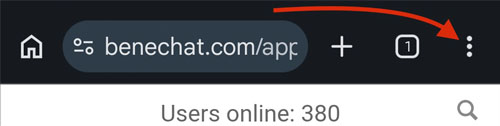
Tap the three-dot menu (⋮) in the top right corner.
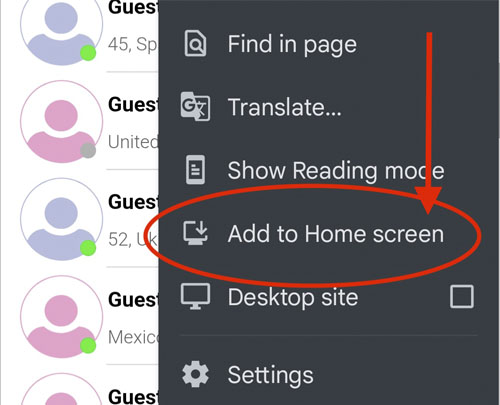
Select Add to Home screen or Install app.
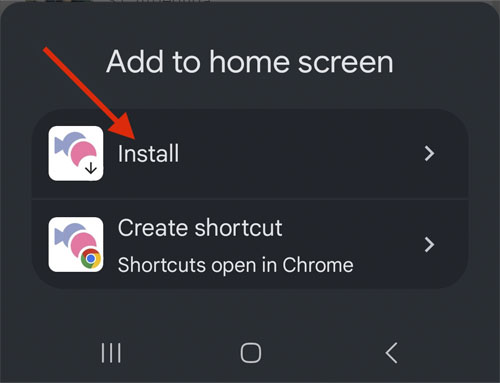
Tap Install or Add.
⚠️ Important: To receive notifications, allow them in the Settings tab. Also allow access to the camera and microphone during your first call. Otherwise, it may be harder to enable them later.
If you later need to enable camera or microphone access in the app: Settings > Settings > Reload the app and allow access to the camera/microphone.
Can chat administrators contact me through private messages?
No. We never contact users through private messages. We only communicate through the support chat or by email. If someone messages you privately claiming to be a chat administrator, please report their account immediately.
What do the green and grey status dots on users’ profiles mean?
A green status dot means the user is currently online. A gray status dot means the user was online when they appeared in your list but has since gone offline.
A feature is missing, what should I do?
We are always open to suggestions and feedback. If the chat is missing a feature, if you have ideas for improving the functionality, or if you simply want to share your opinion, contact our support team.